Search Engine Marketing (SEO)

Introducing the Flowboost MCP: your Google Ads workspace, inside Claude and Codex
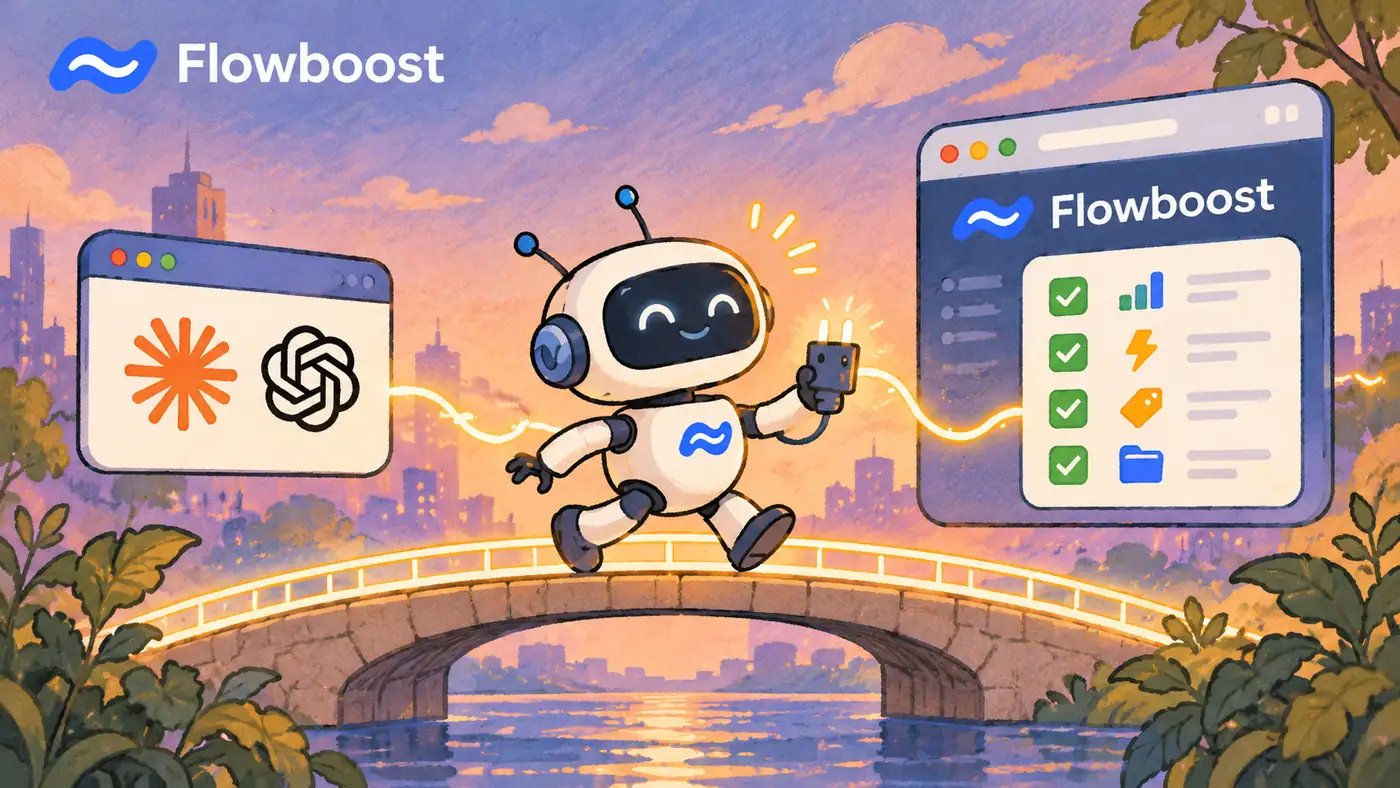
Flowboost now has its own MCP server. Connect it once, and Claude, Claude Code or Codex can work with your Flowboost workspace for you: ask Wolfy about an account, build an automation, schedule a report or set up a Labelizer, all from the same conversation you were already having.
More and more of the work around Google Ads already starts in an AI app. You draft a strategy in Claude, check a hunch in a chat, write a script in Codex, and then switch tabs to actually do something about it. The Flowboost MCP removes that last switch. The app you think in can now act in Flowboost, signed in as you, with the same permissions you already have.
This guide explains what the Flowboost MCP is, what it can do, how it keeps you in control of anything that goes live, and how to connect it in a couple of minutes. Whether you run a single brand's account or manage dozens of clients at an agency, there is a section on what it changes for you.
What is an MCP server?
MCP stands for Model Context Protocol, an open standard that lets AI apps connect to other software. An MCP server is the piece on the software's side: it tells the AI app which actions it can take and what information it can read.
Without one, an AI assistant can only talk about your Google Ads account based on what you paste into the chat. With one, it can look things up and do things in the tool itself, using the same account and the same rules as you. That is the difference between an assistant that gives advice and one that can carry it out when you say yes. If you are new to connecting Claude to your marketing work, our article on Claude Skills for SEO covers another way to extend what it can do.
What the Flowboost MCP can do
The MCP covers most of what you do in the Flowboost platform day to day. Here is what your AI app can work with once it is connected.
Ask Wolfy
Your app can send a question to Wolfy, Flowboost's Google Ads agent, and get a written analysis back. It can also pull the raw data, such as performance, search terms, products, budgets and trends, and analyse it itself. Follow-up questions stay in the same Wolfy conversation, so the context carries over the way it does in a chat thread.
Automations
Your app can create and configure Google Ads automations, preview what an automation would change before it changes anything, read its run history, run it on demand, apply changes from a previous run, or delete it.
Reports
Your app can generate reports, read earlier ones, edit or delete them, manage custom report templates and schedules, and request PDF exports.
Labelizer
For Shopping and Performance Max, your app can create or duplicate a Labelizer, look up its Merchant Center feeds and conversion actions, run an analysis, cancel a run and export the labelled product feed.
Share context with your team
Every Google Ads project in Flowboost has one place for the business context that matters: goals, budget, constraints, preferences and key moments on its timeline. Store it once, and everyone working on the project works from the same picture, wherever they work: in Wolfy's analysis, in a colleague's Claude conversation, in the Slack insights and in the insights on the dashboard.
Through the MCP, your app can read that context and add to it while you work. Hand it a client brief or old notes and it imports the document, turning what it finds into suggestions for you to review. Nobody has to explain the client's margins or seasonality again to every new tool or new team member. Your app can also take care of the project admin around it: create a project and link a Google Ads account to it, rename, remove or restore projects, and group them under a manager project.
Team and access
Your app can manage organisation invitations and members, change Member and Admin roles, manage a project's guests and contacts, and configure Slack insights using a Slack connection you already have.
Built so nothing goes live by accident
Giving an AI app access to live ad accounts raises a fair question: what stops it from switching something on that you did not mean to? We designed the MCP around that question.
- Saving is never going live. When your app sets up an automation, a report schedule or a Labelizer, it only stores a draft. Putting it live is always a separate step.
- Your app asks before it acts. Anything that goes live is a separate tool that works on one record at a time and is marked as destructive, so your app asks you first. It also asks before deleting records, changing access, emailing someone or applying Google Ads changes.
- You can see the change before it happens. Automations can be previewed, so you know what they would change before you approve them.
- Every change is on record. Changes made through the MCP are recorded against your account, exactly like a change you make in Flowboost itself.
In practice, that means the AI app does the preparation and you make the decision. Your app can set everything up, and nothing goes live until you say yes.
What your AI app can and cannot reach
A connected app acts as you, and only as you. It reaches the organisations where you are an Owner, Admin or Member, and every project in them. It cannot see anything you could not see in Flowboost yourself. A few boundaries are worth knowing:
- Guest access stays in Flowboost. If you are a guest on a project, that access is not available through the MCP, and guests cannot be promoted to Member or Admin through it.
- Access follows your membership. If you are removed from an organisation, your app loses access to it as well.
- Several organisations? Say which one. If you belong to more than one, tell your app which organisation you mean, or let it list them first.
- You can disconnect at any time. Under Settings → User settings → MCP, Flowboost lists every app you approved, when you connected it and when it was last active. Choose Disconnect and it loses access at once.
How to connect the Flowboost MCP
Setup takes a couple of minutes and you approve the connection in your browser. You will need a Flowboost account, which is free to start. Inside Flowboost, Settings → User settings → MCP links to the steps for each app, and the Automations, Reports and Labelizer pages show a Connect Claude button when they are still empty.
Connect Claude (web, desktop and mobile)
- Open Flowboost in Claude's connector directory and connect it to your Claude account.
- Claude opens Flowboost in your browser. Sign in if asked, check the app name and the address it sends access to, then choose Allow access.
The connector then works everywhere you use the same Claude account: the web, the desktop and mobile apps, and Claude Code.
Connect Claude Code
- In Flowboost, the Open Claude Code button opens Claude Code with a setup prompt already filled in. Send it.
- Run
/mcp, choose flowboost and Authenticate, then choose Allow access in your browser.
Prefer the terminal? Run:
claude mcp add --transport http --scope user flowboost https://app.flowboost.com/mcp
Connect Codex
- In Flowboost, the Open Codex button opens Codex with a setup prompt already filled in. Send it.
- Codex opens the approval screen in your browser. Sign in if asked and choose Allow access.
Prefer the terminal? Run:
codex mcp add flowboost --url https://app.flowboost.com/mcp && codex mcp login flowboost
The Codex app, CLI and IDE extension share their MCP settings, so you only connect once on each computer. The full steps are in the Flowboost MCP documentation.
What you can ask it: examples for agencies and in-house teams
You talk to your AI app in normal language, and it decides which Flowboost tools to use. The prompts below are illustrations of the kind of request the MCP is built for, not fixed commands.
For agencies
Agencies spend a lot of time on the same steps for every new client and every monthly cycle. The MCP turns those into a conversation.
- Onboarding a client: “Create a project for our new client, link their Google Ads account and import this brief into the project context.”
- Monthly reporting: “Generate this month's report for each project in our organisation and export the PDFs.”
- Team changes: “Invite our new PPC specialist as a Member and add our client contact as a guest on their project.”
- A second opinion: “Ask Wolfy why cost per acquisition rose in this account last week, then suggest an automation to catch it earlier.”
For in-house teams
In-house marketers usually juggle Google Ads alongside other channels. The MCP lets them check and adjust without becoming a full-time platform specialist.
- A quick health check: “Ask Wolfy how our Shopping campaigns performed this month and which products are dragging.”
- Setting up a Labelizer: “Set up a Labelizer for our Merchant Center feed and show me the settings before anything goes live.”
- Reporting for management: “Set up a weekly report schedule for this project and export last week's report as a PDF.”
- Safer automation: “Preview what this budget automation would change before we enable it.”
In each case, your app prepares the work and asks before anything goes live, changes access or applies Google Ads changes.
Limits worth knowing
The MCP does a lot, but a few things still happen in Flowboost itself, and it helps to know them before you start.
- Connections are authorised in Flowboost. Your app can link a Google Ads account to a project, but connecting Google Ads, Merchant Center and Slack in the first place still happens in Flowboost.
- Downloads open in your browser. Product feed and PDF exports come back as download links, which you open in a browser where you are signed in to Flowboost.
- Wolfy takes a few minutes. A thorough analysis is not instant, so your app starts the question and checks back for the answer.
- Some features need a paid plan. Putting something live through the MCP needs the same plan as it does in Flowboost, and the tool tells you when a feature requires one.
How project context stays accurate
Your app can also add to what Wolfy knows about a project, and that is built with care too. What you tell it in the conversation is saved as you said it. Anything it works out by itself only fills empty fields. A change to a value you already have, or to goals, budget or constraints, waits as a suggestion.
Imported documents work the same way: everything found becomes a suggestion you review on the project's Context page, in the Suggestions tab. Each change appears in the History tab, where you can undo it.
Why we built it
We run Google Ads accounts every day, and we build Flowboost around the work we do ourselves. Over the past year, more of that work started in AI apps: drafting analysis, testing ideas, writing scripts. It made little sense for the thinking to happen in one window and the doing in another. The MCP brings them together, without giving up the control that live ad accounts demand.
It also fits how we think about AI in advertising more broadly. Automation is most useful when a specialist can see what it is about to do and decide. That is the idea behind Wolfy, and it is why every live change through the MCP waits for your approval. If you want our wider view on which AI tools are worth using in Google Ads, read “The investigator's report: which Google Ads AI is actually worth hiring?”.
The best way to see what the MCP changes is to try it on a real account. Create a free Flowboost account, connect Claude, Claude Code or Codex, and start with a question for Wolfy. If you would rather have our team run your account with these tools, take a look at our Google Ads management service or talk to us.
Frequently asked questions
What is the Flowboost MCP?
The Flowboost MCP is a Model Context Protocol server that connects AI apps such as Claude, Claude Code and Codex to your Flowboost workspace. Once connected, the app can ask Wolfy for analysis and manage projects, automations, reports and Labelizers, signed in as you.
Which AI apps can I connect to Flowboost?
Flowboost provides setup steps for Claude (web, desktop and mobile), Claude Code and Codex. A Claude connector added once works across every app where you use the same Claude account.
Can an AI app change my Google Ads account without asking?
Not for the steps that matter: the MCP is designed so your app asks first. Saving settings only stores a draft, and putting an automation, report schedule or Labelizer live is a separate step your app asks you to approve. Your app also asks before deleting records, changing access, emailing someone or applying Google Ads changes.
Is the Flowboost MCP free?
You can start with a free Flowboost account. Some features need a paid plan, and putting something live through the MCP requires the same plan as it does in Flowboost. The tool tells you when that is the case.
How do I disconnect an app?
Go to Settings → User settings → MCP in Flowboost and choose Disconnect next to the app. It loses access immediately, and you would need to approve it again to reconnect.

Daniel Rojo

Frequently asked questions
Explore other blogs






Rotterdam
Bierstraat 123 C
Valencia Carrer del Prof. Beltrán Báguena 5


Flowboost 2026 ~ All rights reserved.